My Verizon For Business
- 4.7
- Rating
- 500.00K
- Installs
- Free
- Price

 Analysis by App-foxy
Managing a business wireless account from a phone sounds simple until you need to check something while away from a desk. That is where My Verizon For Business makes sense. I found it most useful as a mobile account-management tool for Verizon business customers who want to handle routine tasks without opening a desktop browser or calling support for every small question.
The app is free, aimed at business account holders, and developed by Verizon Consumer Group. It has a 4.7 average from around 21 thousand ratings, with more than 500 thousand installs, so it is clearly being used beyond a small group of early adopters. Its Everyone age rating also makes it suitable from a content perspective for a broad audience, although the account information it displays is naturally intended for people connected to a Verizon business service.
What to expect before you begin
I would not approach this as a full replacement for every business telecom workflow. Its strength is convenience: opening the account on a phone, getting oriented, and taking care of the kind of administrative job that otherwise interrupts a workday. If you expect a mobile version of every advanced business-management screen, you may find the experience narrower than expected.
You May Also Like

 Blood Strike: 2.5 Anniversary
Blood Strike’s Loadouts Turn Every Drop Into a Tactical Gamble
A close look at Blood Strike’s custom loadouts: how fast access to signature weapons reshapes its battle royale rhythm, rewards preparation, and narrows the gap between fights.

 Pandora - Music & Podcasts
Pandora’s Music Is Easy to Start, but Harder to Recover
Pandora’s strength is its low-effort path from a seed to a station. Its weak spot is how much confidence it asks you to place in connection, setup, and quiet recovery.

 8 Ball Pool
8 Ball Pool Is Built on Rivalries, Rematches, and Routine
A close look at the rivalries, rematches, shared routines, and unanswered safety questions that turn a quick pool match into a persistent mobile community.

 Samsung Music
Samsung Music’s Quiet Strength Is Playing What You Already Own
Its reach comes less from spectacle than from dependable access to a personal library. That simplicity is both the app’s strongest retention engine and its ceiling.

 AccuWeather: Weather Radar
AccuWeather Review: A Quick, Clear Forecast for Everyday Decisions
For everyday plans, the best forecast is the one you can understand quickly. AccuWeather makes rain timing, radar, and local conditions easy to act on, with a few trade-offs.

 Hill Climb Racing
Why Hill Climb Racing Still Turns Crashes Into One More Run
A tiny car, a bumpy hill and one more upgrade: Hill Climb Racing keeps resurfacing because its simple chaos makes every near-miss feel personal.
More From Our News Desk



The useful mental model is a secure doorway into your Verizon business account. You install it, sign in with the account credentials associated with your service, and then look for the particular account area or action you need. The first meaningful success is usually not dramatic. It may be confirming that you are viewing the correct business account, checking the current account information, or completing a routine management task without switching to another device.
That focus makes the app a good fit for a small-business owner, an office administrator, or a manager who is responsible for keeping a company’s Verizon services organized. It is less compelling for someone who does not have a Verizon business account, rarely manages account details, or needs detailed operational reporting rather than everyday account access.
The current release is version 6.8.0, and the app supports devices running Android 7.0 or later. That broad operating-system requirement is helpful if your business still uses an older but dependable Android phone. I would still install it on the device you actually use for work rather than treating it as a spare utility, because its value comes from having account access available at the moment a question or task appears.
Installing it without creating confusion
Before opening the app, I recommend having the correct Verizon business sign-in details ready. This sounds obvious, but business accounts can involve several people, phone lines, and levels of responsibility. If you normally use one login for personal Verizon services and another for work, pause before entering anything. Starting with the wrong credentials can make the app seem empty or send you into an account area that does not match your goal.
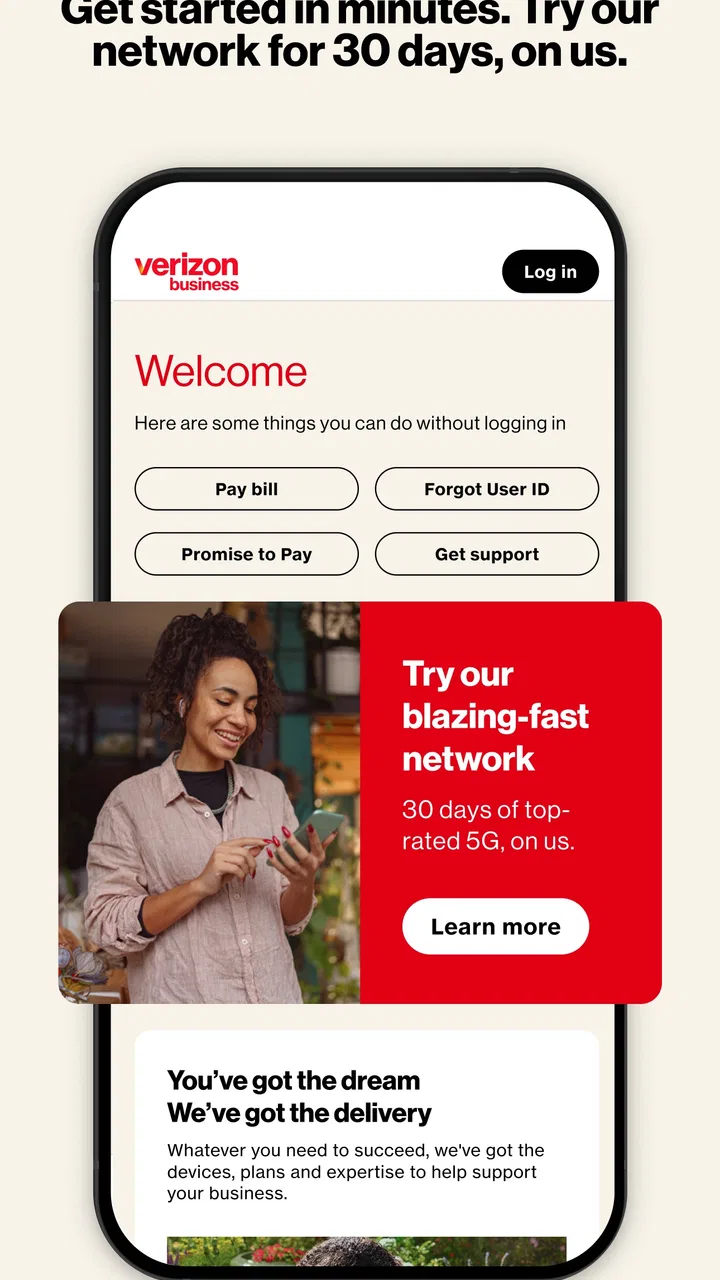
After installation, take a moment to identify what the opening screen is showing. Do not immediately tap through every available option. First confirm that the account context looks right: the business relationship, the service you intended to manage, and any identifying information presented by the app. This small check is one of the most useful habits for avoiding mistakes when a company has multiple lines or more than one Verizon account.
I also suggest completing the first sign-in when you are not rushing between meetings. The app is designed for access from virtually anywhere, but “anywhere” does not always mean “during the most stressful moment of the day.” If the sign-in needs extra verification or you have to recover account access, it is much easier to solve that calmly at your desk than in a parking lot before an appointment.
One practical trade-off is that mobile convenience depends on the account being set up correctly outside the app. My Verizon For Business cannot make an unclear business ownership structure magically clear. If several employees share responsibility, decide who should use the app and what each person is expected to manage. That simple agreement prevents the phone from becoming another source of uncertainty.
Finding the first useful action
Once signed in, I would begin with a low-risk task that answers a real question. For example, if you are about to approve a work-related expense, open the relevant account information and verify that you are looking at the intended service. If you are helping a colleague with a business line, use the account view to establish which account or service you are dealing with before making changes elsewhere.
This approach is better than exploring randomly because it teaches you the app’s structure through a genuine need. You learn where account information lives, how the app separates business services, and which actions require another step. The first success should leave you with a clear result, not just the feeling that you opened the app and looked around.
A useful workflow is to write down the question before opening the app: “Which business account am I viewing?” “What do I need to manage today?” or “Can I confirm this service information from my phone?” Then stop once that question is answered. This keeps the mobile session focused and reduces the chance of tapping into an unrelated account area.
The best first win is confirmation before action. In a business setting, knowing that you are in the correct account is often more valuable than moving quickly through an unfamiliar menu. I would make this verification step part of every future session, especially when the phone is shared, the account has multiple services, or another employee asked you to handle something on their behalf.
For an owner who works away from the office, this can remove a surprisingly common interruption. Imagine receiving a message while visiting a client: someone needs a quick account check, but your laptop is in the car or back at the office. Instead of postponing the answer until you return, you can open the business account, confirm the relevant information, and decide whether the issue can be handled there or needs a fuller support process.
Where first-time users may hesitate
The most likely confusion comes from the difference between viewing an account and having permission to perform every possible account task. A business account may involve several roles, and the app’s usefulness can depend on the access attached to the sign-in. If an option is unavailable or the information does not look complete, I would first check the account being used rather than assuming the app is broken.
Another point of friction is the temptation to treat the app like a general business dashboard. It is a Verizon account-management app, not a replacement for your company’s billing records, staff communication tools, inventory system, or internal service desk. Keeping that boundary in mind makes the experience more predictable. Use it for the Verizon relationship, then move to the appropriate business tool for everything around it.
It is also worth distinguishing a routine account question from a problem that needs direct assistance. The app can be a convenient starting point, but a complicated service dispute, an issue involving several lines, or a matter requiring detailed documentation may still be easier to resolve through Verizon’s broader support channels. I would use the app to gather the account context first, then escalate with that information available.
One non-obvious advantage of starting in the app is that it can help you avoid giving vague instructions to a colleague. Instead of saying “check the Verizon account,” you can identify the specific business account or service you are viewing and communicate from the same context. That is a small improvement, but it matters when several lines look similar or when a company has changed how responsibilities are divided.
How it compares with the usual alternatives
The obvious alternative is using a mobile browser. A browser may be preferable when you need a wider layout, want to keep several work tabs open, or are already handling related records on a computer. It can also feel more natural for someone who only checks the account occasionally and does not want another app on the phone.
The dedicated app has a different advantage: it puts the business account experience in a place you can reach directly. I found that more convenient for a quick check than beginning with a browser, searching for the correct Verizon page, and navigating from there. The app is especially sensible for people who handle account questions while traveling between locations or who do not want to rely on having a laptop nearby.
Calling support remains the better route when the situation is complex, urgent, or outside ordinary account management. A phone conversation can be slower to start, but it may be more suitable when you need guided troubleshooting or when several details must be explained. My recommendation is not to choose one method permanently. Use the app for quick orientation and routine management, the browser for broader work, and direct support when the situation needs a person.
There is another alternative that businesses often overlook: asking one designated administrator to handle everything. That can reduce inconsistent changes, but it also creates a bottleneck when that person is unavailable. Giving appropriate staff members a reliable mobile way to view and manage their Verizon business account can make everyday work more flexible. The trade-off is that the company should still define who is responsible for which actions.
Small habits that make the app more useful
My first tip is to separate checking from changing. Open the app to confirm the account and service before you begin a management task. If you are interrupted, you will know exactly what you had already verified and what still needs attention. This is safer than tapping through several screens and trying to remember where you left off.
My second tip is to use consistent language with your team. When someone asks for help, ask them which business account or service they mean, then compare that description with what you see in the app. This is more reliable than relying on a nickname such as “the office phone,” especially when a company has remote staff or multiple locations.
My third tip is to treat the app as an access point, not the company’s only record. After completing an important account task, keep any relevant internal note in the place your business already uses for documentation. The app can help you act quickly, but good business continuity still depends on your own records and clear ownership.
A fourth useful habit is to test your access before a trip or a busy workday. You do not need to explore every screen. Simply open the app, confirm that you can reach the correct business account, and close it. That quick check can reveal a sign-in problem before it becomes urgent, while still respecting the fact that account access should be handled carefully.
Who should choose it, and who should skip it
I would recommend My Verizon For Business to a Verizon business customer who values quick account access and wants a practical mobile option for routine management. It is a particularly good match for owners and administrators who are often away from a desk, as well as for teams that need to confirm account details without handing every small question to one central administrator.
I would be more cautious if your main requirement is advanced business analysis, detailed multi-system reporting, or a complete communications-management console. In that situation, the app may be useful alongside another tool, but it should not be your entire workflow. A desktop browser or a dedicated business-management system may give you the broader view you need.
I would also skip it if you do not use Verizon business services. The free price is attractive, but a free account app is only valuable when it connects to an account you actually manage. Installing it out of curiosity will not provide much practical benefit.
My recommendation after getting started
My Verizon For Business succeeds when you use it for what it does best: bringing your Verizon business account closer to the moment a work question appears. The path is straightforward—install it on a compatible Android device, sign in with the correct business credentials, confirm the account context, and complete one small, meaningful task before exploring further.
It is not a magical shortcut for every business-service problem, and I would not replace a browser or support channel with it in every situation. Its value is more grounded than that. It reduces the distance between you and the account information you need, while giving you a practical option when a computer is inconvenient.
With a 4.7 average and thousands of ratings behind it, the app has earned strong user approval, but my own recommendation is based on fit rather than popularity. If mobile access to a Verizon business account would save you repeated interruptions, it is worth trying. If you need a full administrative workspace or rarely touch the account, stick with the method that already suits your work. For the right user, this free app is a reassuring first step from “I need to check that” to “I have confirmed it and know what to do next.”
FAQs for My Verizon For Business
01What is My Verizon for Business used for?
My Verizon for Business is a mobile account-management app for Verizon business customers. After signing in, administrators and authorized users can review account information, monitor wireless services, manage users and lines, view or pay bills, check usage, and access support resources. The exact tools available depend on your Verizon business account, role, services, and region.
02Can I pay my Verizon business bill through the app?
In many cases, the app allows eligible business account users to view billing details, review statements, make payments, and manage payment methods. However, payment permissions may be limited to account owners, billing administrators, or other authorized roles. If a payment option is not displayed, your account permissions or service setup may require you to use the Verizon business website or contact Verizon support.
03Can My Verizon for Business manage multiple lines and employees?
Yes, the app is designed to help businesses manage connected services and users from one place, although the available controls vary by account type and permissions. Depending on your role, you may be able to view lines, review usage, manage certain features, and make changes to users or devices. Larger or more complex accounts may still require the full web portal.
04Is My Verizon for Business free to download and use?
The application is generally available to download without a separate app purchase, but using it requires an eligible Verizon business account and a compatible device. Standard mobile data charges may apply when the app is used over cellular data, and Verizon services, plans, device payments, or other account charges remain separate. Always check the current store listing and Verizon terms.
05Is the app secure, and what should I do if I cannot sign in?
My Verizon for Business requires account credentials and may use additional verification methods to protect business information. For better security, install the official version from Google Play or the Apple App Store, keep your device updated, and avoid sharing login details. If sign-in fails, verify your credentials, reset your password if available, check your connection, and contact Verizon business support when necessary.
Pros
- Quick access to business account balances
- invoices
- and payment options.
- Supports management of multiple business lines from one account.
- Usage details help monitor data
- calls
- and messaging activity.
- Service alerts can notify you about outages or account issues.
- Useful tools for reviewing eligible upgrades and device information.
Cons
- Some account features may redirect to Verizon’s website or another app.
- Business users may need administrator permissions for certain actions.
- Large accounts can make navigation and line management feel cumbersome.
- Notifications may require careful setup to avoid missing important alerts.
- Availability of features can vary by plan
- role
- and business account type.

My Verizon For Business
Gallery